

Please follow the steps below to configure outgoing mail in CrintellTech Recruitment Assist.
Step 1: Go to "User Preferences" in your Recruitment Assist Dashboard.

Step 2: On the "User Preferences" settings page, locate the "MailWatch Configuration" section. Enter your mailbox credentials based on the selected option: [ You will be redirected to the sign-in page. Enter your official email ID and password]
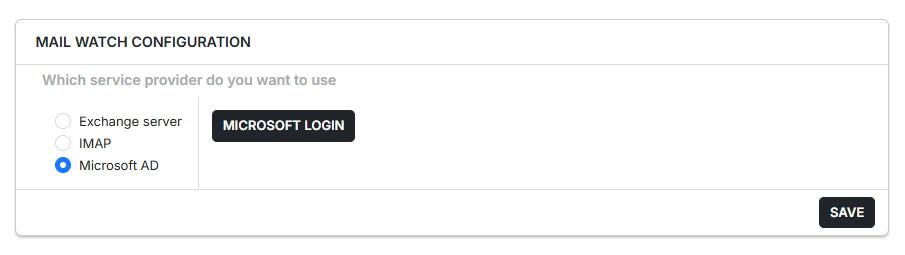
Step 3: Once you have configured any one of these options, click "Save."
If your credentials are configured correctly, you will see a confirmation message: "Configuration Updated."
Note on Mailwatch (Post-Configuration):
Once Mailwatch is configured, it will continuously monitor the selected mailbox. Any existing resumes already present in the mailbox, as well as new incoming resumes, will be automatically parsed and pushed into the ATS under the mapped recruiter account.
Important: Mailwatch should be enabled only if the mailbox does not contain any confidential or non-resume-related emails. If confidential information is present, resumes must instead be manually forwarded to a designated email ID.